> ## Documentation Index
> Fetch the complete documentation index at: https://docs.tensionhost.com/llms.txt
> Use this file to discover all available pages before exploring further.
# How to create a schedule
> In this guide you will learn how to create a schedule with steps on how to create a schedule that will auto restart the server every 12 hours.
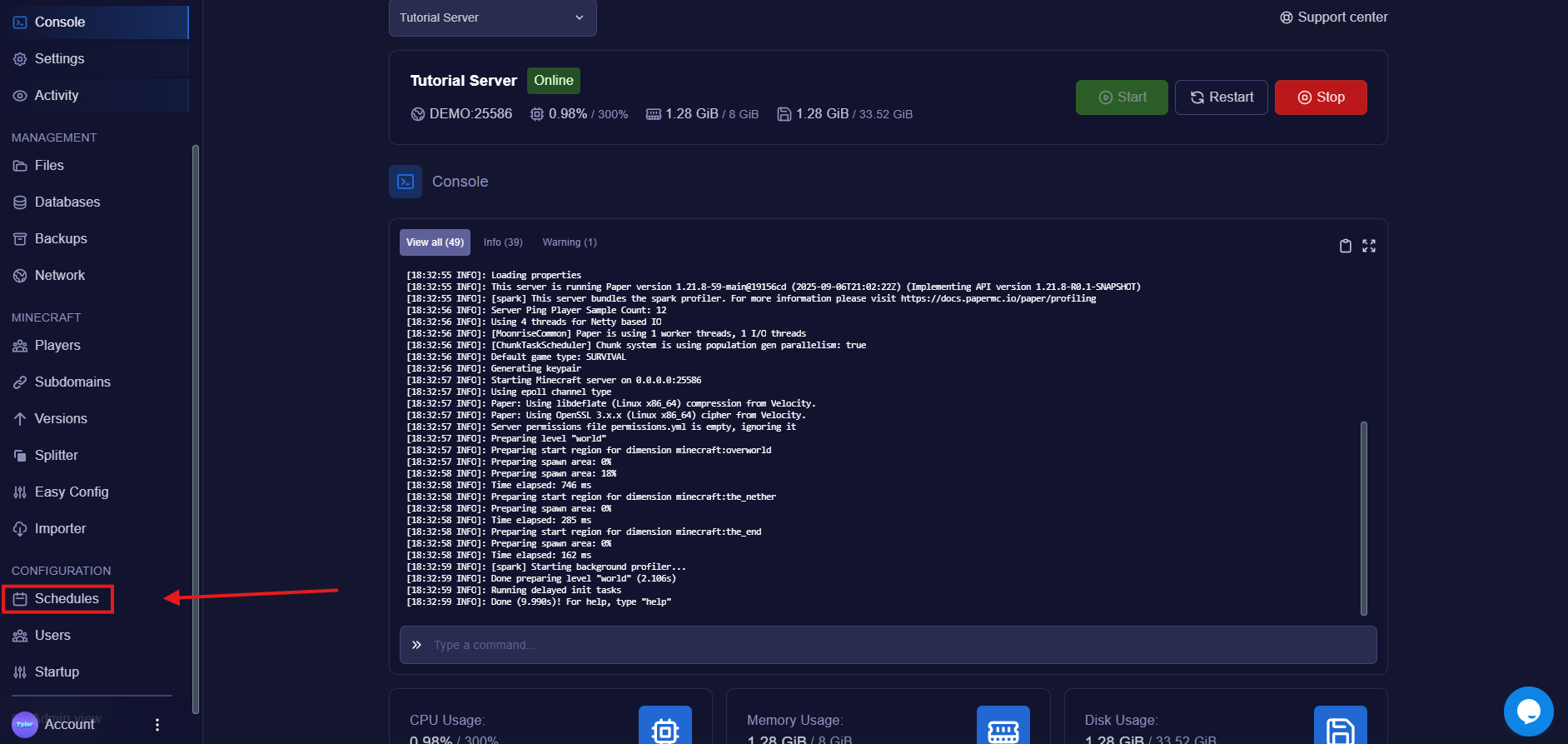
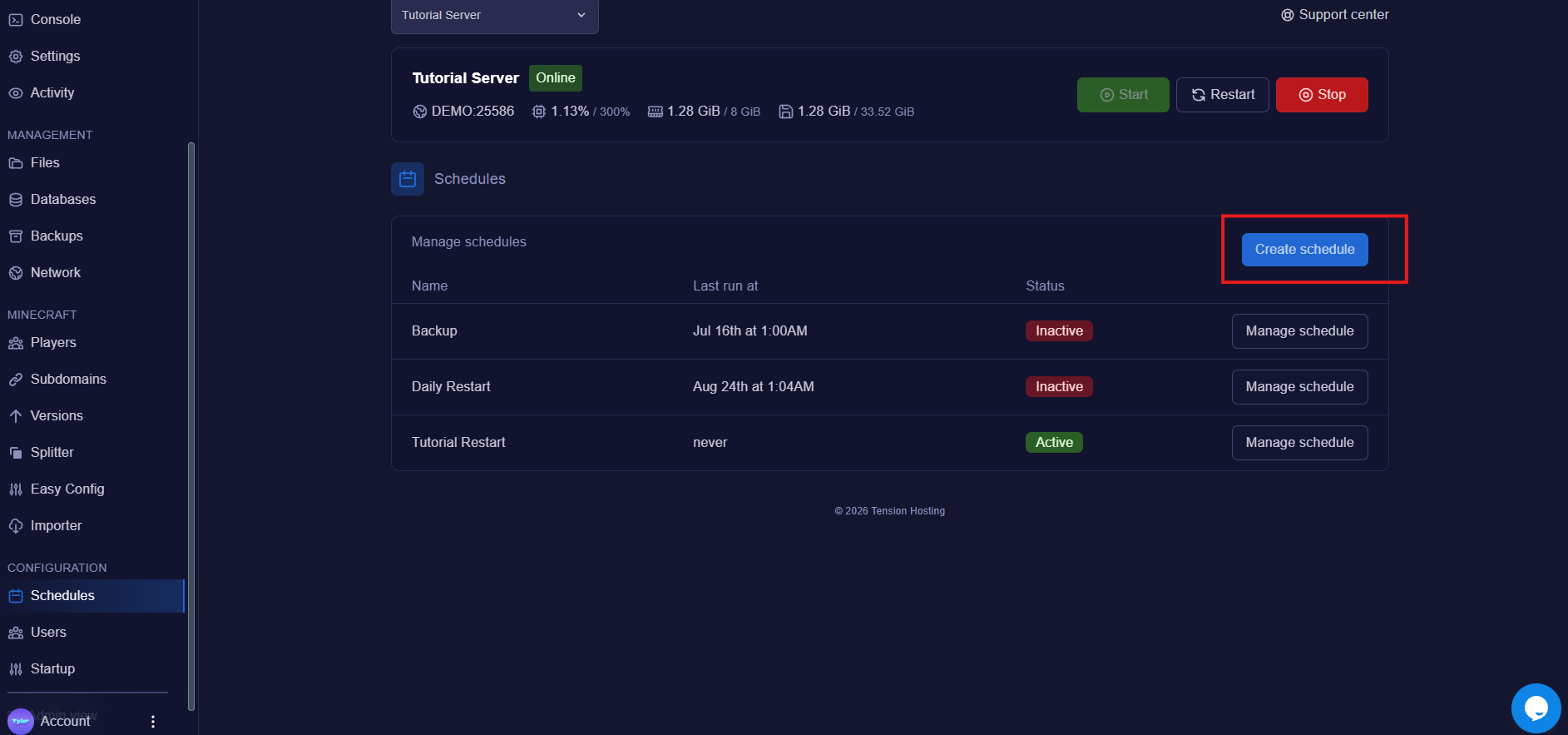
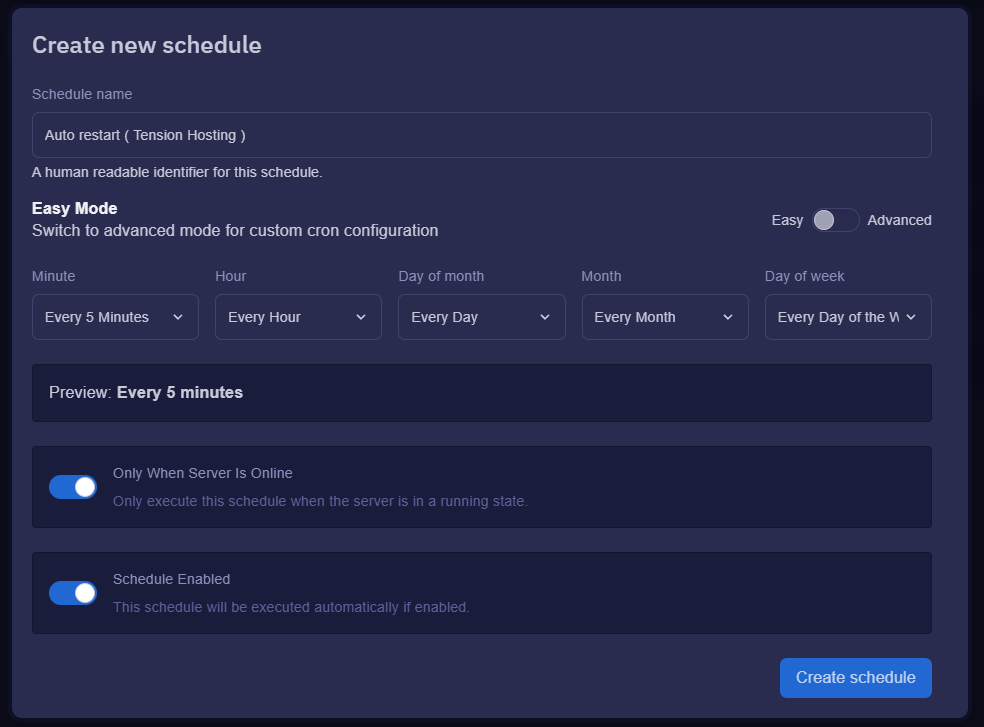
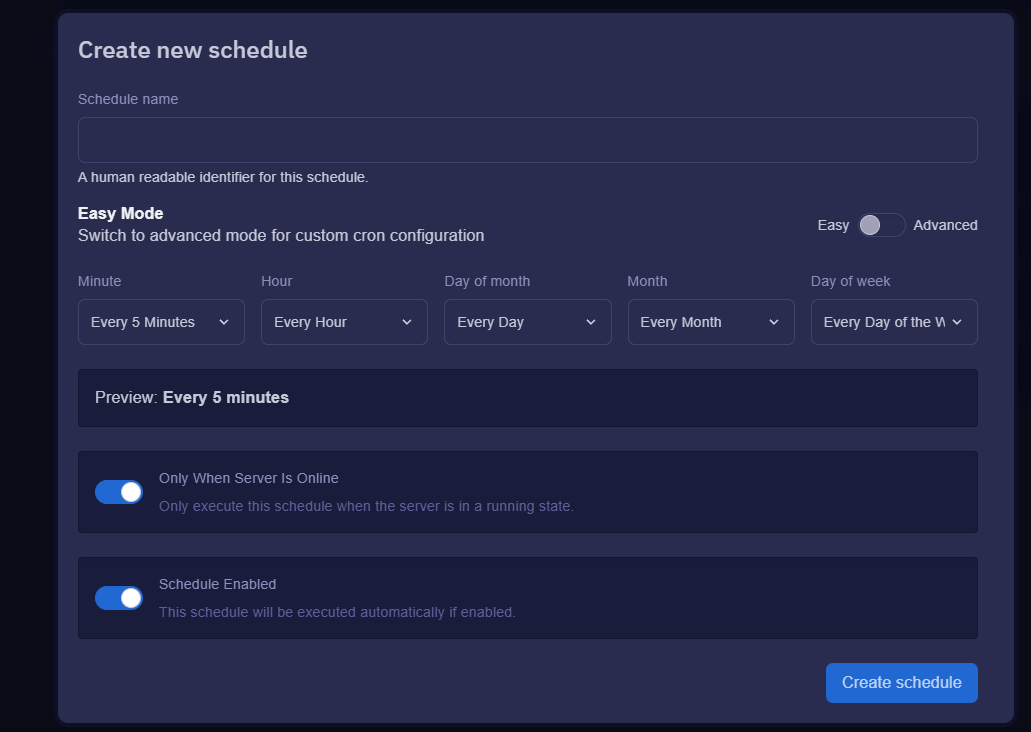 We have made it very easy, to change when the schedule runs just press the time you want in the dropdown, for example every day at midnight!
 This is where you need to tell the schedule what time you want it to run and configure if you want it to run when the server is online/offline, etc.
The setting the time part can seem quite overwhelming but we have created a table of usefull times that you can use:
| \*/5 \* \* \* \* | Every 5 Mins |
| ---------------- | ------------ |
| 0 \*/1 \* \* \* | Every Hour |
| 0 0 \* \* MON | Every Monday |
This is where you need to tell the schedule what time you want it to run and configure if you want it to run when the server is online/offline, etc.
The setting the time part can seem quite overwhelming but we have created a table of usefull times that you can use:
| \*/5 \* \* \* \* | Every 5 Mins |
| ---------------- | ------------ |
| 0 \*/1 \* \* \* | Every Hour |
| 0 0 \* \* MON | Every Monday |
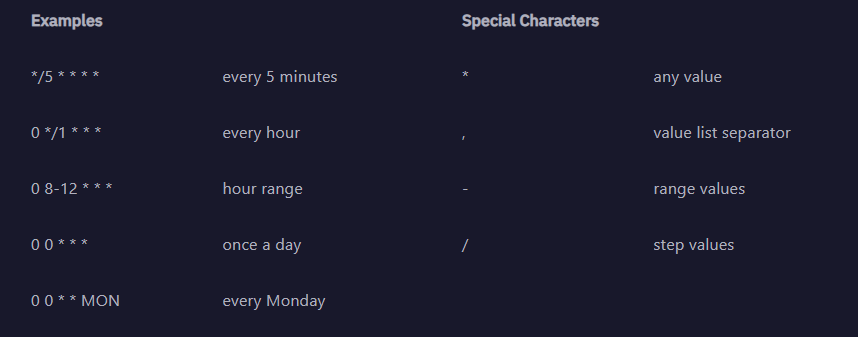 You can configure this to your liking by changing the values and by using [this website](https://crontab.cronhub.io/) to generate the perfect cron job time for you.
Dont worry, we have a preview that tells you what you entered so you know you done it right!
## Creating an Auto Restart
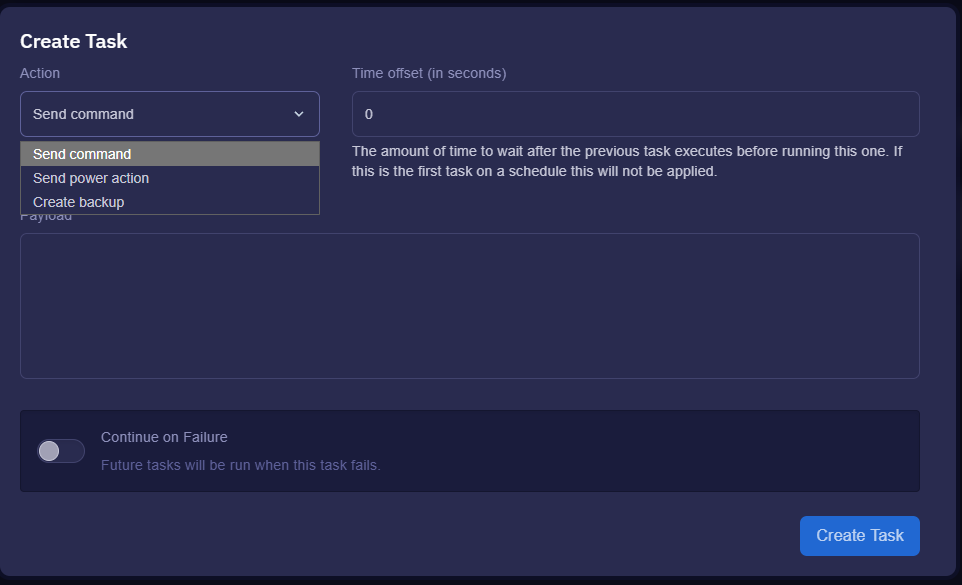
Now that you have created your schedule, you can press the new task button, that will bring up the new task menu
 After you have selected your required power action, for example " Restart the server ".
At the time you set before the server will now Restart.
**We know this can be confusing, so we are here to help:**
If you need any more support, join our [Discord](https://discord.tensionhost.com) or open a [ticket](https://billing.tensionhost.com/tickets/create)