> ## Documentation Index
> Fetch the complete documentation index at: https://docs.tensionhost.com/llms.txt
> Use this file to discover all available pages before exploring further.
# How to create a custom IP for your server
> Want a professional, easy-to-remember IP for your game server like play.yourdomain.com or myserver.tensionhost.com? In this guide, we’ll show you how to set up a custom subdomain IP for your Minecraft or game server. Learn the benefits of a branded server address, how it improves server visibility and more!
## What is a Custom IP?
A custom IP, more commonly known as a subdomain in tech terms, is a way to connect to a game server, in this example, a Minecraft server, without having to remember all the numbers in an IP.
A Subdomain is words instead of numbers, meaning you can just have your server name as the IP. This not only allows better accessibility for your players but also makes it a lot more memorable.
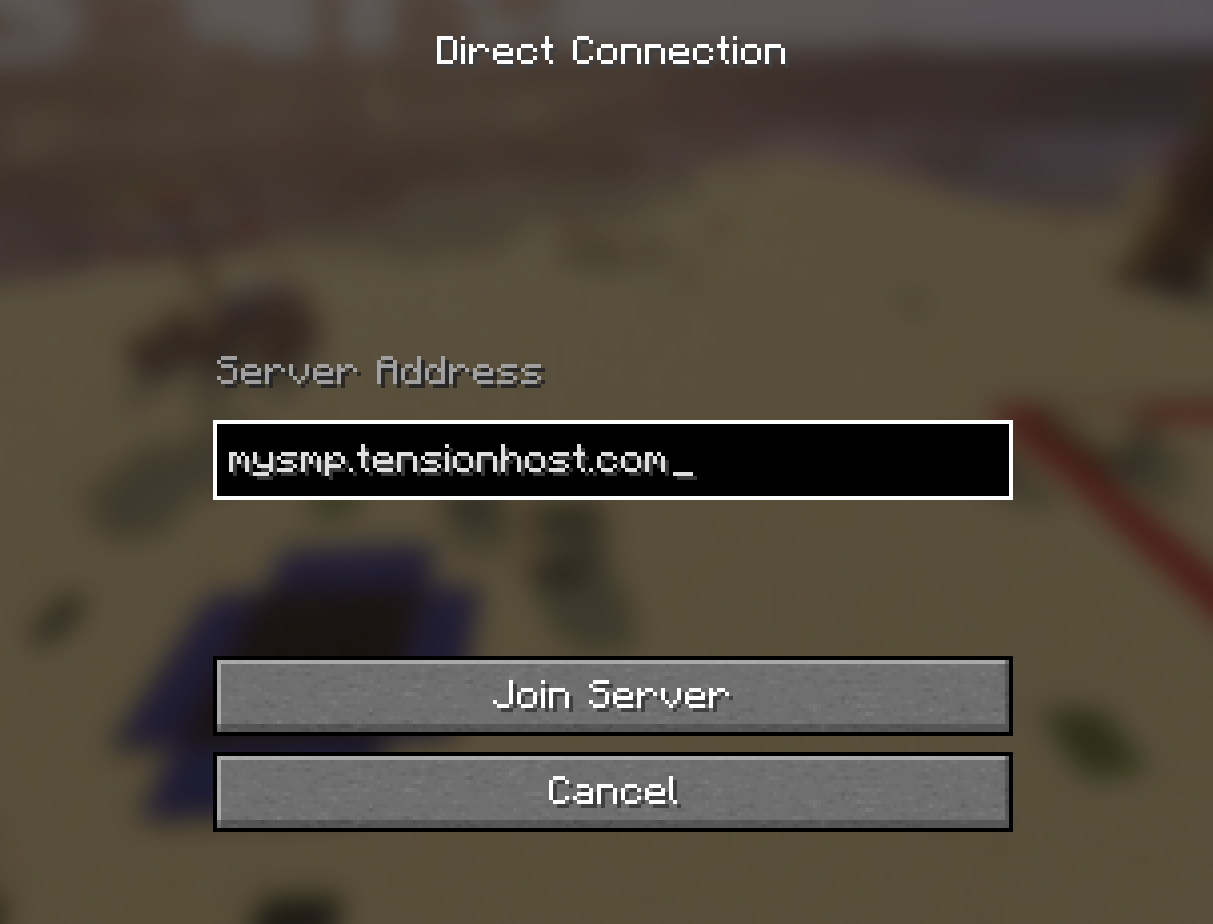 This not only makes your server more professional, but also helps players remember the IP address. This means that if they ever lose contact with your Discord, for example, they can still recall the server IP and continue playing.
## How can I create a custom IP?
To create your subdomain IP, you first need to access your server.
If you don't already have a server, check out our guide on how to [set up your own server](https://docs.tensionhost.com/pages/welcome/quickstart#purchasing-a-server)
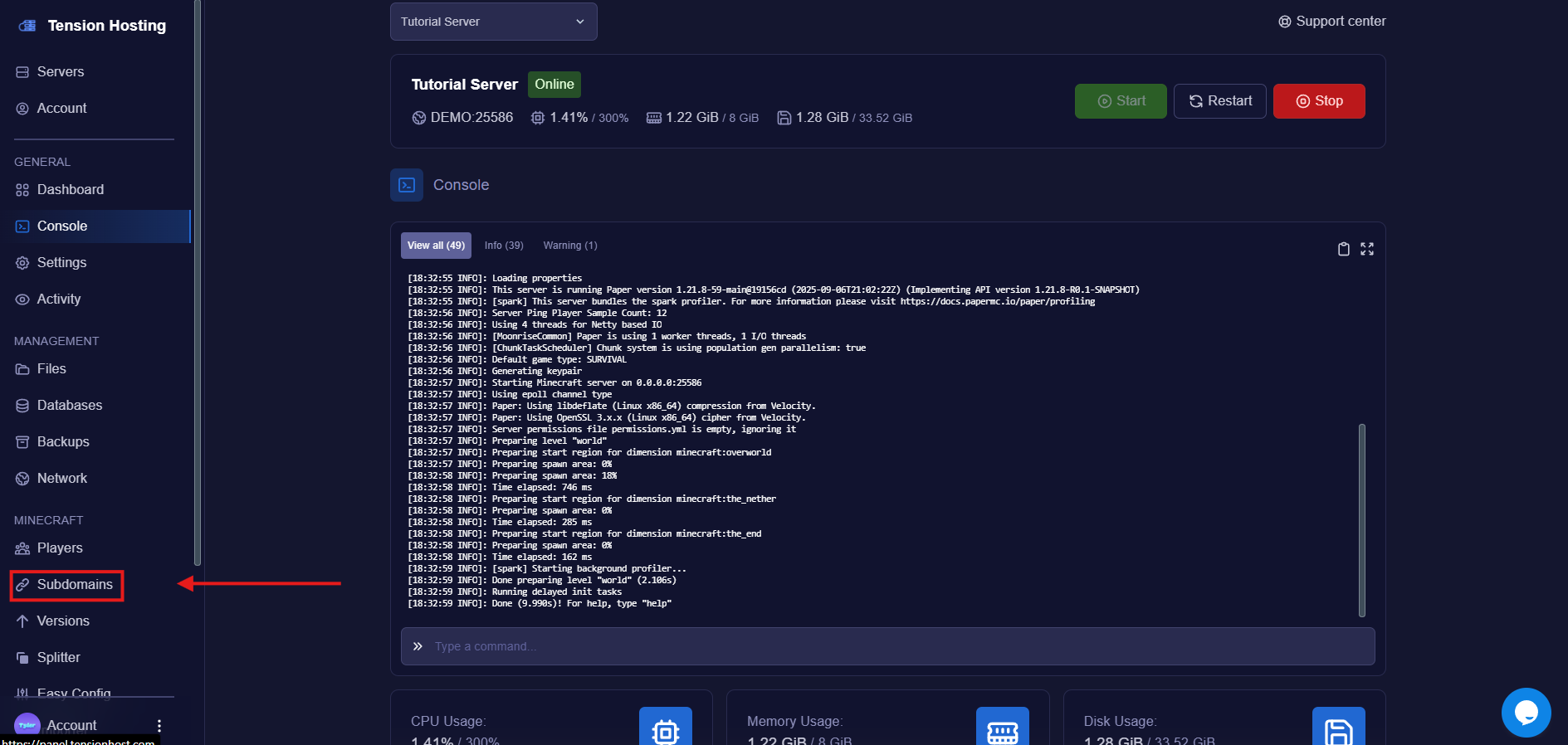
On your Tension server, visit the "Subdomain" tab to get started
This not only makes your server more professional, but also helps players remember the IP address. This means that if they ever lose contact with your Discord, for example, they can still recall the server IP and continue playing.
## How can I create a custom IP?
To create your subdomain IP, you first need to access your server.
If you don't already have a server, check out our guide on how to [set up your own server](https://docs.tensionhost.com/pages/welcome/quickstart#purchasing-a-server)
On your Tension server, visit the "Subdomain" tab to get started
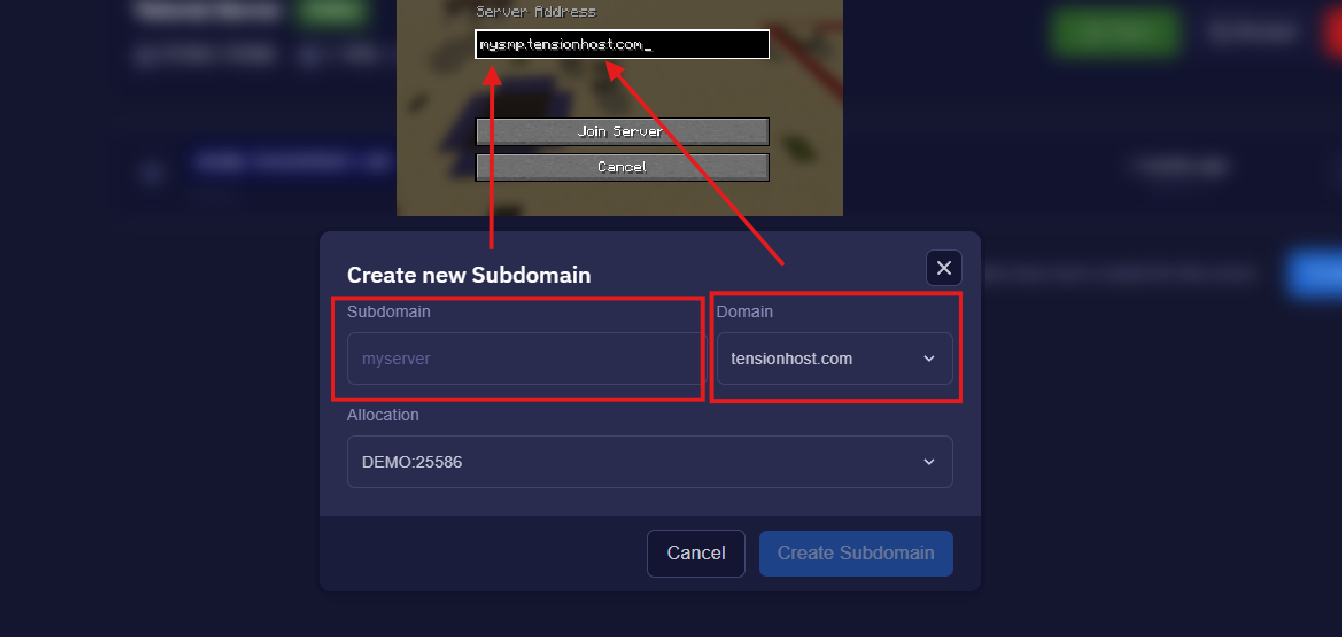
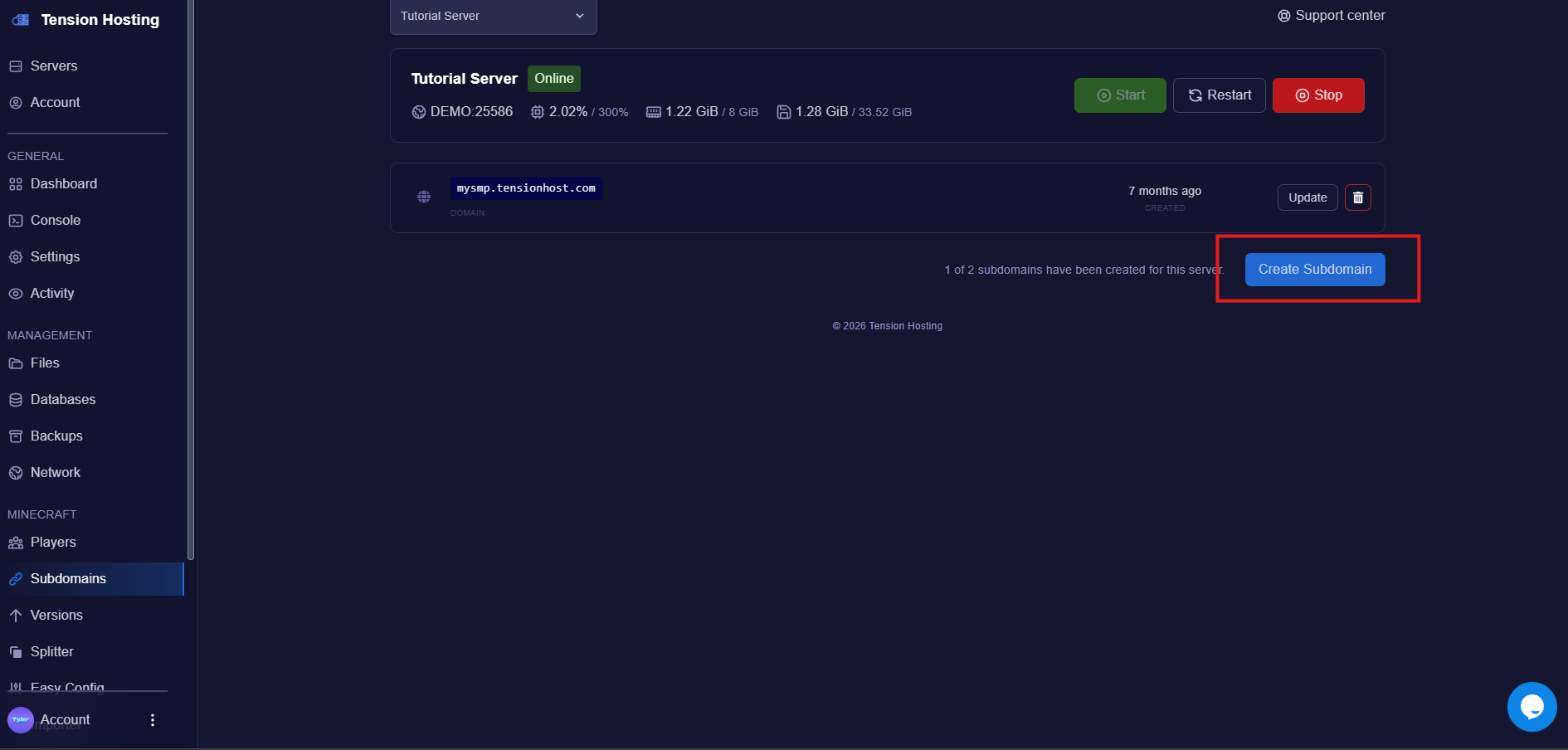 The image below shows what controls what part of your IP. The first part would be the part before the " . ", and the domain controls what it shows after it.
For the allocation, you would need to choose what IP you want linked to the subdomain. If you don't have a separate port for Bedrock, you don't need to worry about this and can keep the default.
Otherwise, which allocation you choose would control what your subdomain links to.
The image below shows what controls what part of your IP. The first part would be the part before the " . ", and the domain controls what it shows after it.
For the allocation, you would need to choose what IP you want linked to the subdomain. If you don't have a separate port for Bedrock, you don't need to worry about this and can keep the default.
Otherwise, which allocation you choose would control what your subdomain links to.
For example, if you have a Java connection at port 25565 and a bedrock server which is linked to, for example,e port 25567, choosing the allocation that ends in 25565 would make your custom IP link to the java server and choosing the allocation that ends in 25567 would link to your bedrock server.
 You have done it! You have created your own subdomain IP, and players should be able to connect via your new subdomain!
Why doesn't it work?
If the server isn't letting you connect via your new IP, you may have to wait about 5 minutes for it to update. If it still doesn't work, [contact support](https://billing.tensionhost.com/tickets/create)
## Still Stuck?
If you need any more support, join our [Discord](https://discord.tensionhost.com) or open a [ticket](https://billing.tensionhost.com/tickets/create)
You have done it! You have created your own subdomain IP, and players should be able to connect via your new subdomain!
Why doesn't it work?
If the server isn't letting you connect via your new IP, you may have to wait about 5 minutes for it to update. If it still doesn't work, [contact support](https://billing.tensionhost.com/tickets/create)
## Still Stuck?
If you need any more support, join our [Discord](https://discord.tensionhost.com) or open a [ticket](https://billing.tensionhost.com/tickets/create)