> ## Documentation Index
> Fetch the complete documentation index at: https://docs.tensionhost.com/llms.txt
> Use this file to discover all available pages before exploring further.
# How to Connect to Your Minecraft Server with SFTP
> This guide shows you how to connect to your Minecraft server files using SFTP with WinSCP. Learn where to find your SFTP details on the Tension panel, how to log in, and how to upload worlds, modpacks and large files faster than the browser file manager.
The Files tab on the panel is great for quick edits, but for the heavy lifting, uploading a whole world, pulling down a full backup, moving a modpack's worth of files, you want SFTP. It connects a program on your computer directly to your server's files so you can drag and drop like it's a normal folder.
## Connecting with SFTP
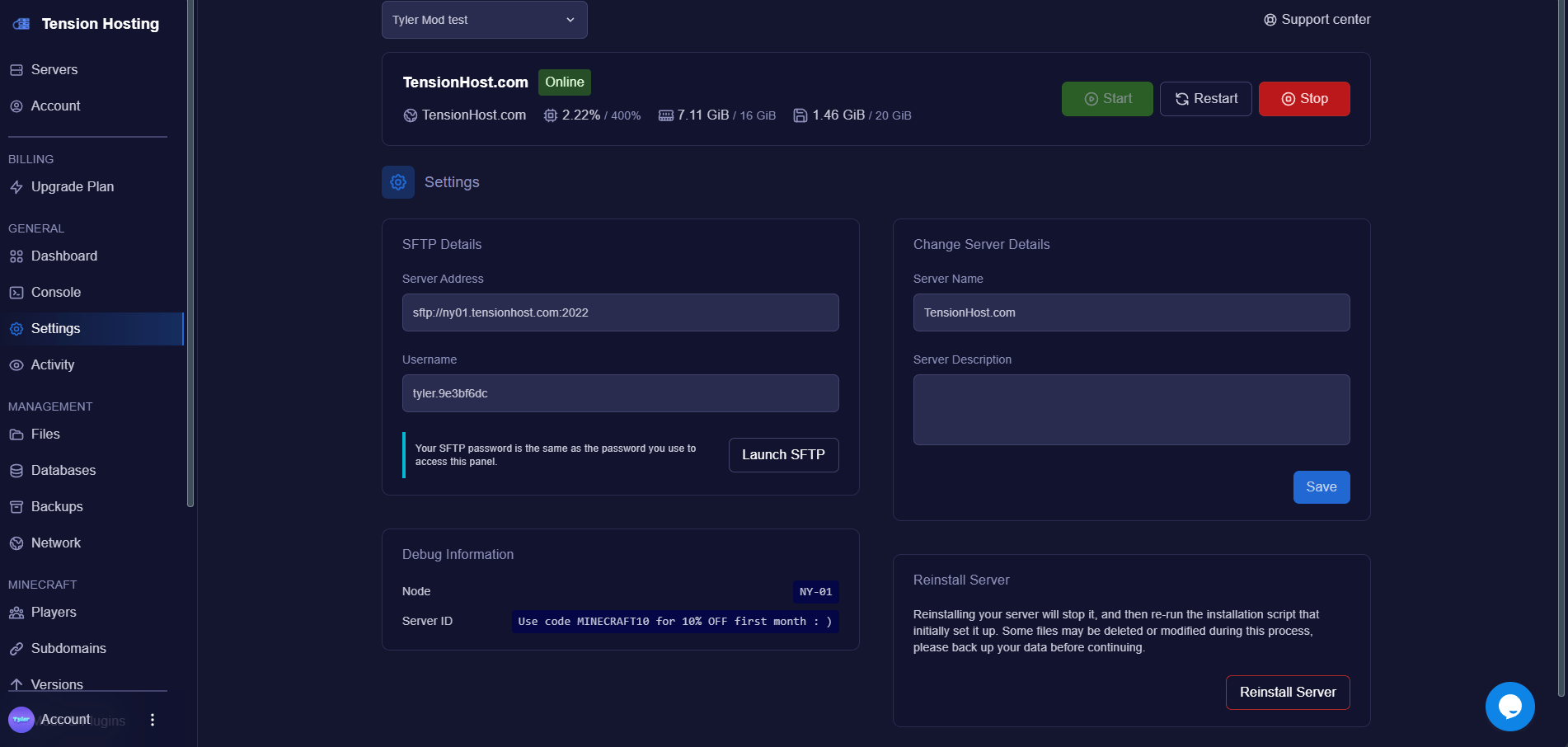
On your server, head to the " Settings " tab and look at the SFTP Details box. You need three things:
* **Server Address**, something like sftp\://ny01.tensionhost.com:2022. The middle bit is the host, the number on the end is the port.
* **Username**, yours will look like name.abc123. Copy it exactly, the dot and letters matter.
* **Password**, this is the same password you use to log in to the panel.
Your address depends on which node your server runs on, so always copy what your own Settings tab shows rather than what you see in a screenshot.
 We recommend [WinSCP](https://winscp.net/eng/download.php), it's free and dead simple. WinSCP is Windows only, so if you're on Mac or Linux, [FileZilla](https://filezilla-project.org) does the same job.
Already have a client installed? The **Launch SFTP** button in your Settings tab can open the connection straight in it, you'll just be asked for your panel password.
Open WinSCP and fill in the login window:
* **File protocol:** SFTP
* **Host name:** your server address without the sftp\:// bit, for example [ny01.tensionhost.com](http://ny01.tensionhost.com) yours will be in the settings tab.
* **Port number:** 2022
* **User name:** your SFTP username shown in settings tab
* **Password:** your panel password
Press **Login**. The first time you connect, WinSCP asks if you want to continue connecting to an unknown server, that's normal, press Yes. Hit Save before logging in if you don't fancy typing it all again next time.
The right side of WinSCP is your server, the same files you see in the Files tab. The left side is your computer. Drag files either way to upload or download. That's it, you're in.
Your SFTP login has full access to everything on your server. Never share it. If a friend needs access, [add them as a sub-user](/pages/how-to/subusers) with only the permissions they need instead.
## SFTP FAQs
### What is my SFTP password?
The same password you log in to the panel with. There's no separate SFTP password to find or reset.
### Can I use FTP instead of SFTP?
No. We only support SFTP, the encrypted version, so your files and password aren't sent over the internet in the open. Just pick SFTP as the file protocol when you connect and you're sorted.
### Why can't I connect?
Three things cause almost every failed connection: the port is set to 21 or 22 instead of **2022**, the username isn't copied exactly, or the password isn't your current panel password. Check those in order. Still stuck? Ask in our [Discord](https://discord.tensionhost.com).
### Is SFTP faster than the file manager?
For big transfers, much faster and much more reliable. Browser uploads struggle with multi-gigabyte worlds and can't resume if they fail. Use the Files tab for quick config edits and SFTP for anything heavy.
Moving here from another host? You might not need SFTP at all, our [Importer pulls your whole server across for you](/pages/how-to/server-migration).
## Still stuck?
If you need any more support, join our [Discord](https://discord.tensionhost.com) or open a [Ticket](https://billing.tensionhost.com/tickets/create)
We recommend [WinSCP](https://winscp.net/eng/download.php), it's free and dead simple. WinSCP is Windows only, so if you're on Mac or Linux, [FileZilla](https://filezilla-project.org) does the same job.
Already have a client installed? The **Launch SFTP** button in your Settings tab can open the connection straight in it, you'll just be asked for your panel password.
Open WinSCP and fill in the login window:
* **File protocol:** SFTP
* **Host name:** your server address without the sftp\:// bit, for example [ny01.tensionhost.com](http://ny01.tensionhost.com) yours will be in the settings tab.
* **Port number:** 2022
* **User name:** your SFTP username shown in settings tab
* **Password:** your panel password
Press **Login**. The first time you connect, WinSCP asks if you want to continue connecting to an unknown server, that's normal, press Yes. Hit Save before logging in if you don't fancy typing it all again next time.
The right side of WinSCP is your server, the same files you see in the Files tab. The left side is your computer. Drag files either way to upload or download. That's it, you're in.
Your SFTP login has full access to everything on your server. Never share it. If a friend needs access, [add them as a sub-user](/pages/how-to/subusers) with only the permissions they need instead.
## SFTP FAQs
### What is my SFTP password?
The same password you log in to the panel with. There's no separate SFTP password to find or reset.
### Can I use FTP instead of SFTP?
No. We only support SFTP, the encrypted version, so your files and password aren't sent over the internet in the open. Just pick SFTP as the file protocol when you connect and you're sorted.
### Why can't I connect?
Three things cause almost every failed connection: the port is set to 21 or 22 instead of **2022**, the username isn't copied exactly, or the password isn't your current panel password. Check those in order. Still stuck? Ask in our [Discord](https://discord.tensionhost.com).
### Is SFTP faster than the file manager?
For big transfers, much faster and much more reliable. Browser uploads struggle with multi-gigabyte worlds and can't resume if they fail. Use the Files tab for quick config edits and SFTP for anything heavy.
Moving here from another host? You might not need SFTP at all, our [Importer pulls your whole server across for you](/pages/how-to/server-migration).
## Still stuck?
If you need any more support, join our [Discord](https://discord.tensionhost.com) or open a [Ticket](https://billing.tensionhost.com/tickets/create)